 Inspect
Sentry
Start automations from Sentry issue and metric alerts.
Connect Sentry
A workspace administrator connects Sentry in Settings → Integrations by installing the Inspect integration in a Sentry organization. Select Connect another organization to add more. Each Sentry organization can be connected to only one Inspect workspace.
Add the trigger
Select Sentry alert under Add trigger. When more than one Sentry organization is connected, choose one under Sentry organization, or keep Any organization to accept alerts from all of them. Save the automation.
Start the automation from a Sentry alert
Sentry decides when an alert fires; the trigger has no filters of its own. Only alerts whose action selects the automation start it.
-
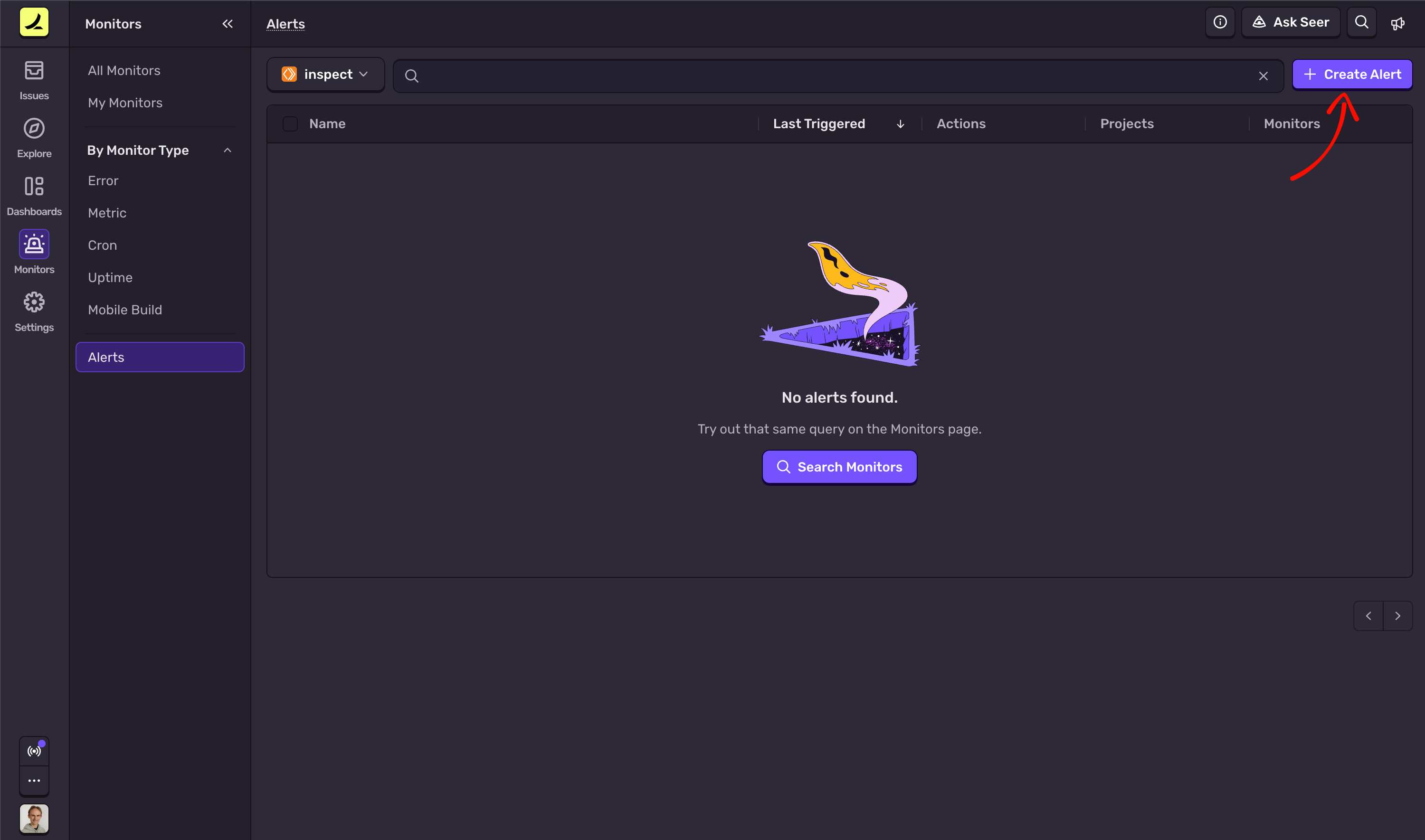
In Sentry, open Monitors → Alerts and select Create Alert, or edit an existing issue or metric alert.
-
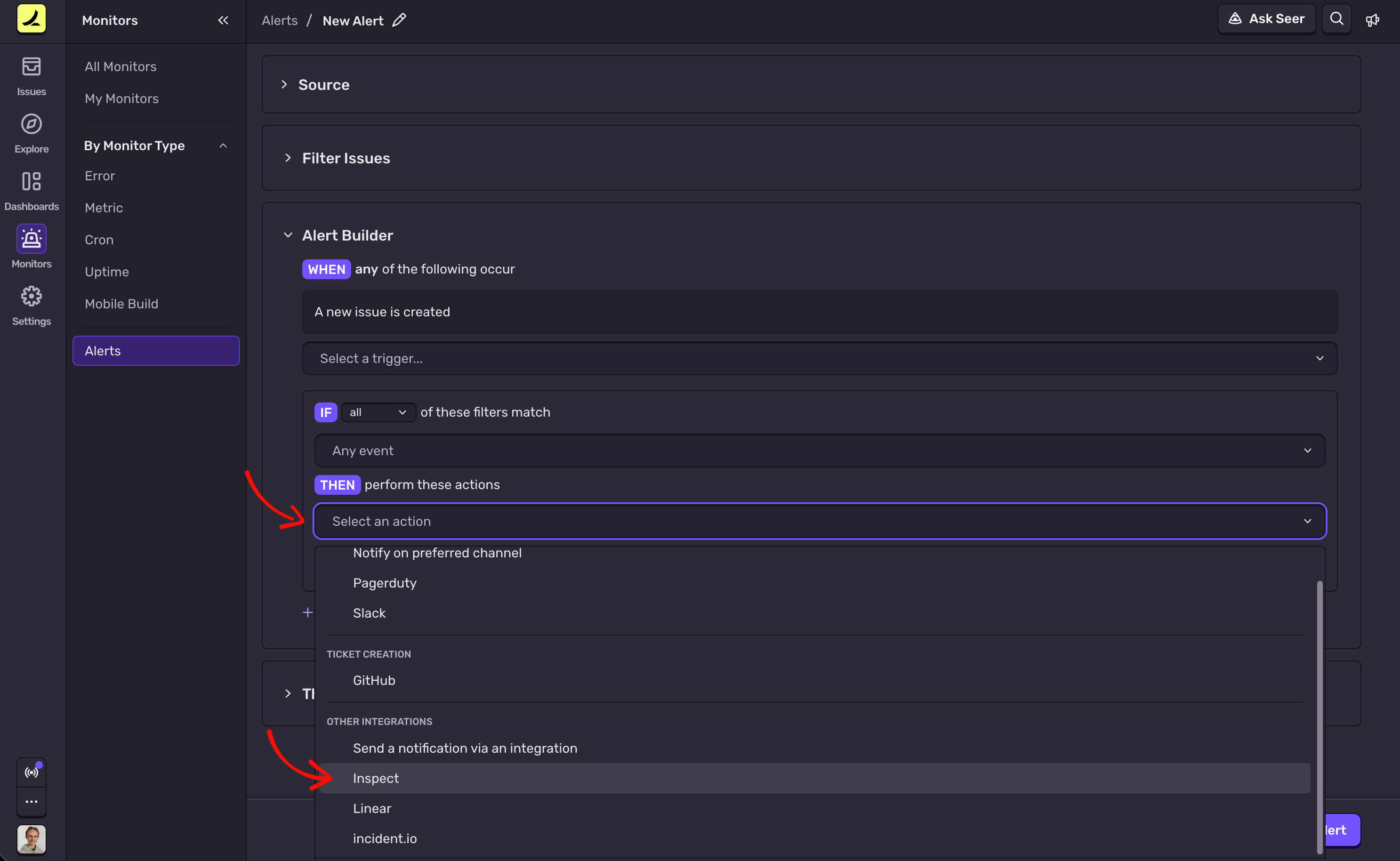
Under THEN perform these actions, open Select an action and choose Inspect.
-
Select Action Settings, choose the automation under Automation, and select Save Changes. Then save the alert.
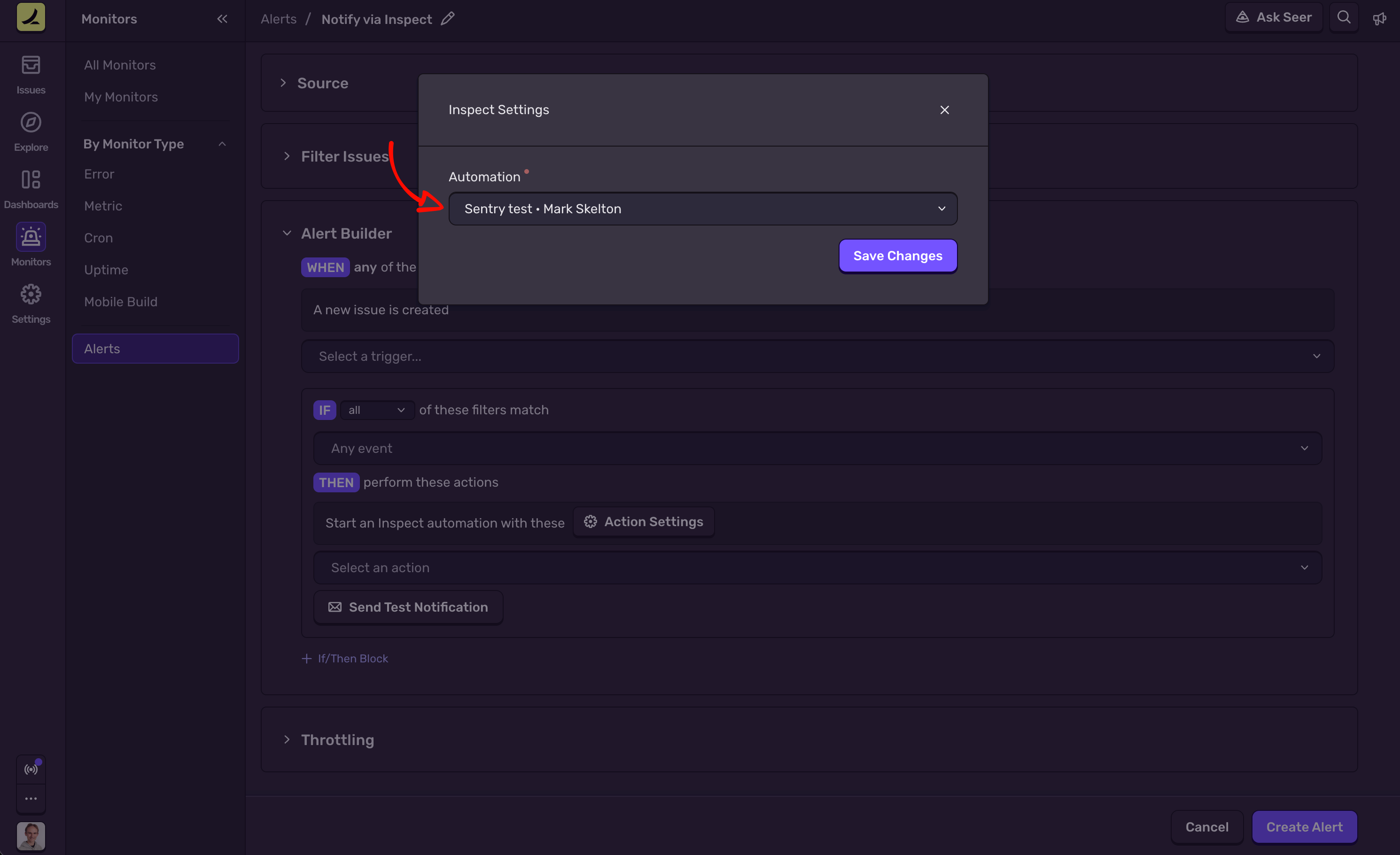
The Automation list shows only enabled automations with an enabled Sentry trigger for that organization. Add the Inspect action more than once to start several automations from one alert.
What starts a run
Issue alerts start a run for each triggering event. The agent receives the alert name, issue title and ID, event ID, level, environment, tags, and a link to the event.
Metric alerts start a run when they reach critical or warning; resolutions do not start runs. The agent receives the alert rule name and ID, projects, environment, description, and a link to the alert.
Repeated deliveries of the same event, or the same metric alert status, do not create another run.
Disconnect Sentry
Disconnecting an organization in Inspect stops Inspect from accepting its alerts. Uninstall Inspect in Sentry to remove it there.